Workflow Documentation
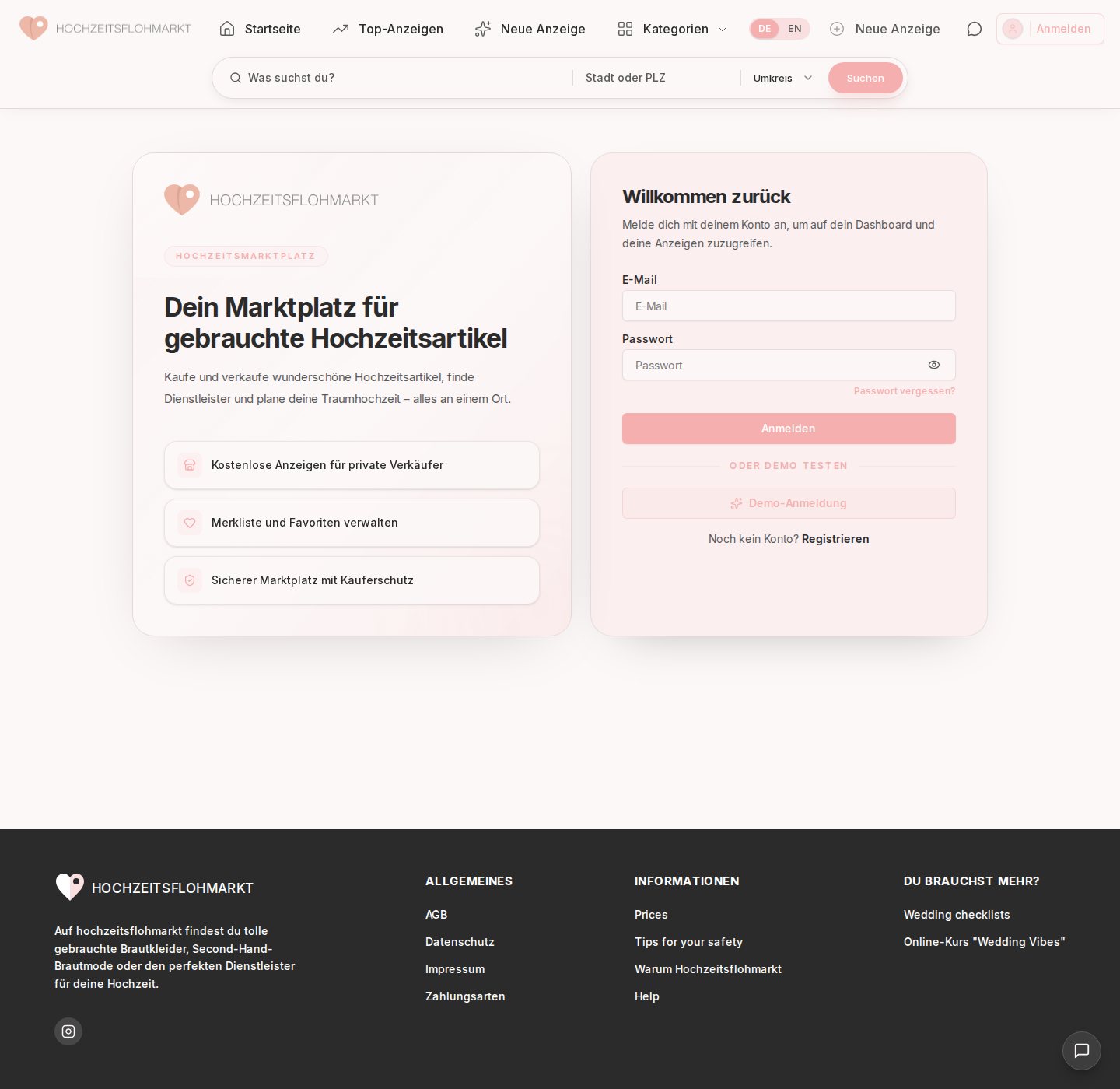
1. Login
- Open landing login page.
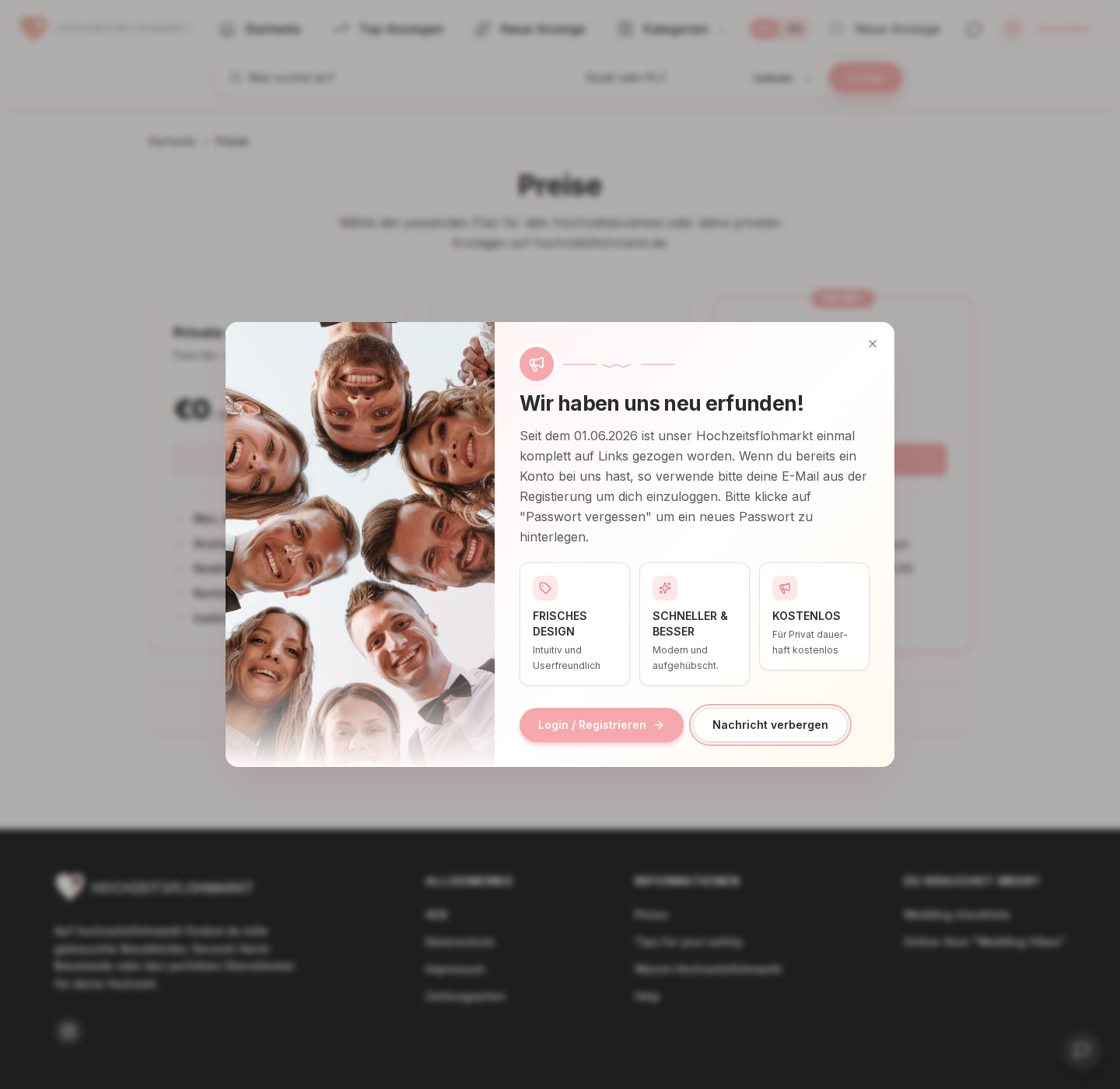
- Close announcement modal if present.
- Enter credentials or use the available quick-login path.
- Backend creates session and redirects to dashboard.
2. Registration
- Open
/signup. - The first screen presents pricing / plan choices.
- Selecting a plan opens a plan-specific registration variant.
- Fill account details for the chosen plan.
- Submit to create account.
- Expected follow-up: login/session establishment.


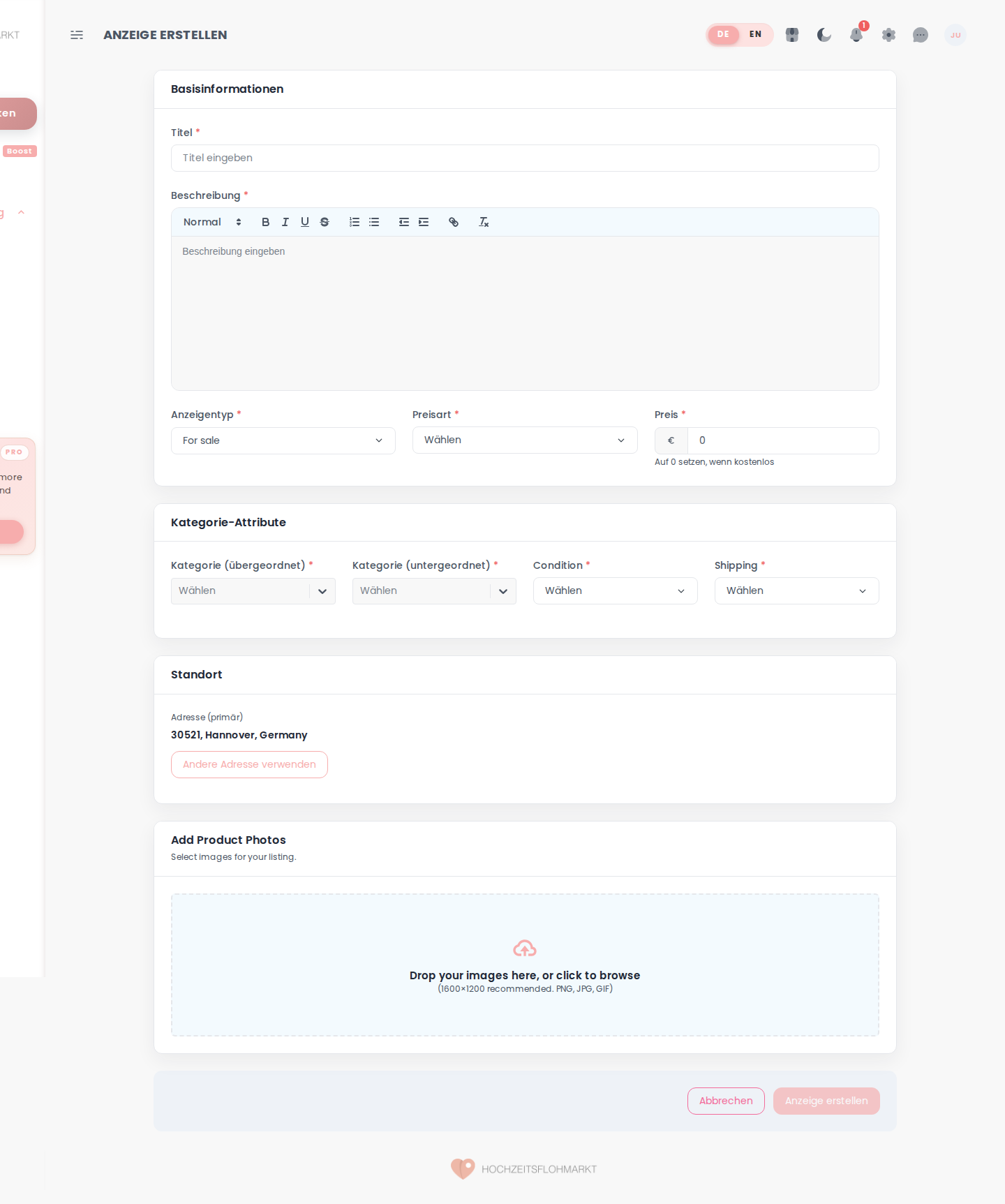
3. Listing Creation
- Open dashboard
Erstellen. - Fill basic info:
- title
- description
- listing type
- price type
- price
- Choose categories.
- Set attributes like condition/shipping.
- Confirm address.
- Upload images.
- Submit listing.
4. Listing Editing / Management
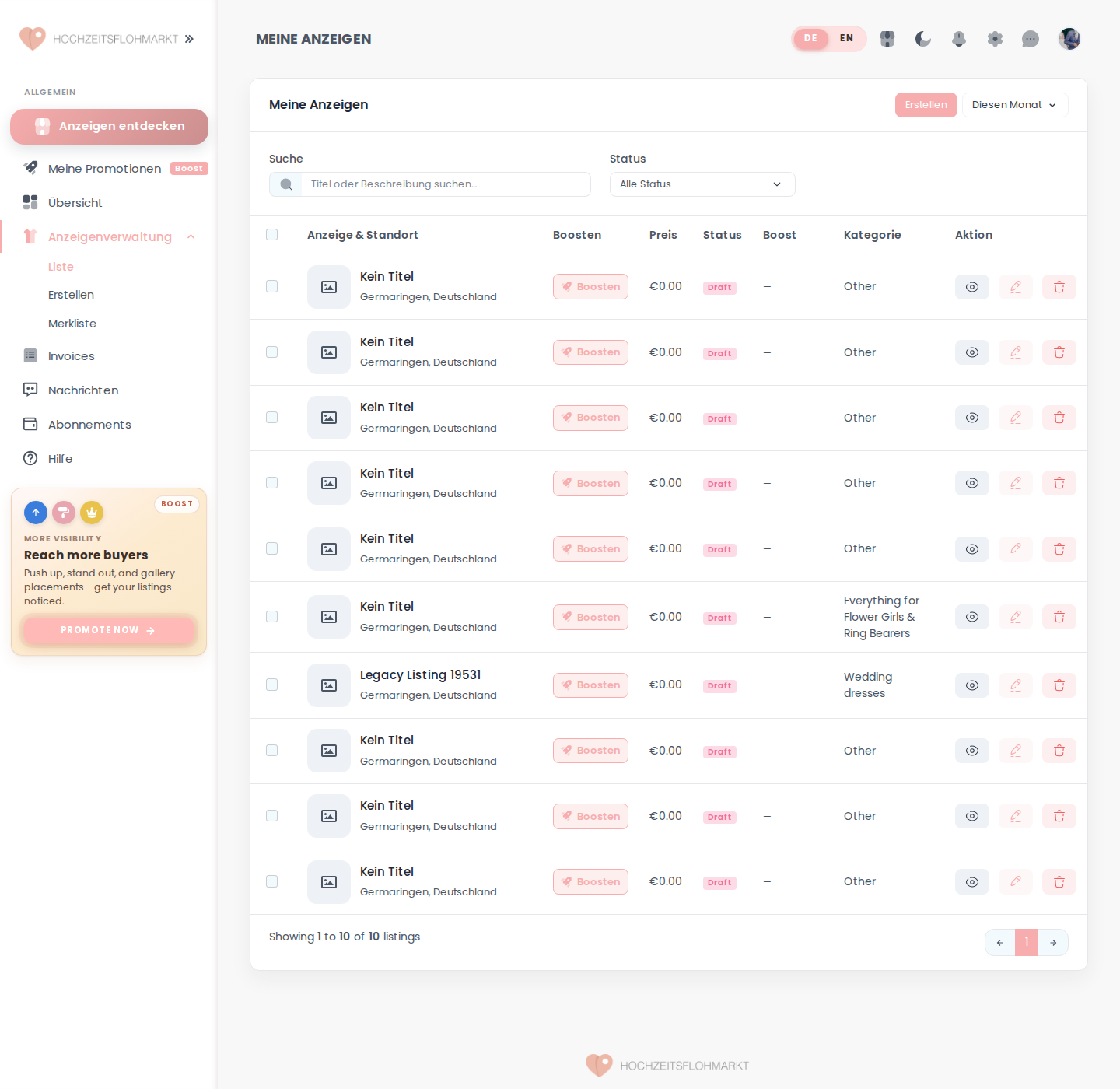
- Open
Liste. - Filter/search own listings.
- Open row action or detail page.
- Edit fields, status, or promotion options.
5. Media Uploads
- Use listing creation/edit form.
- Drag/drop or browse images.
- Supported UI copy mentions PNG/JPG/GIF and recommends
1600x1200.
6. Messaging
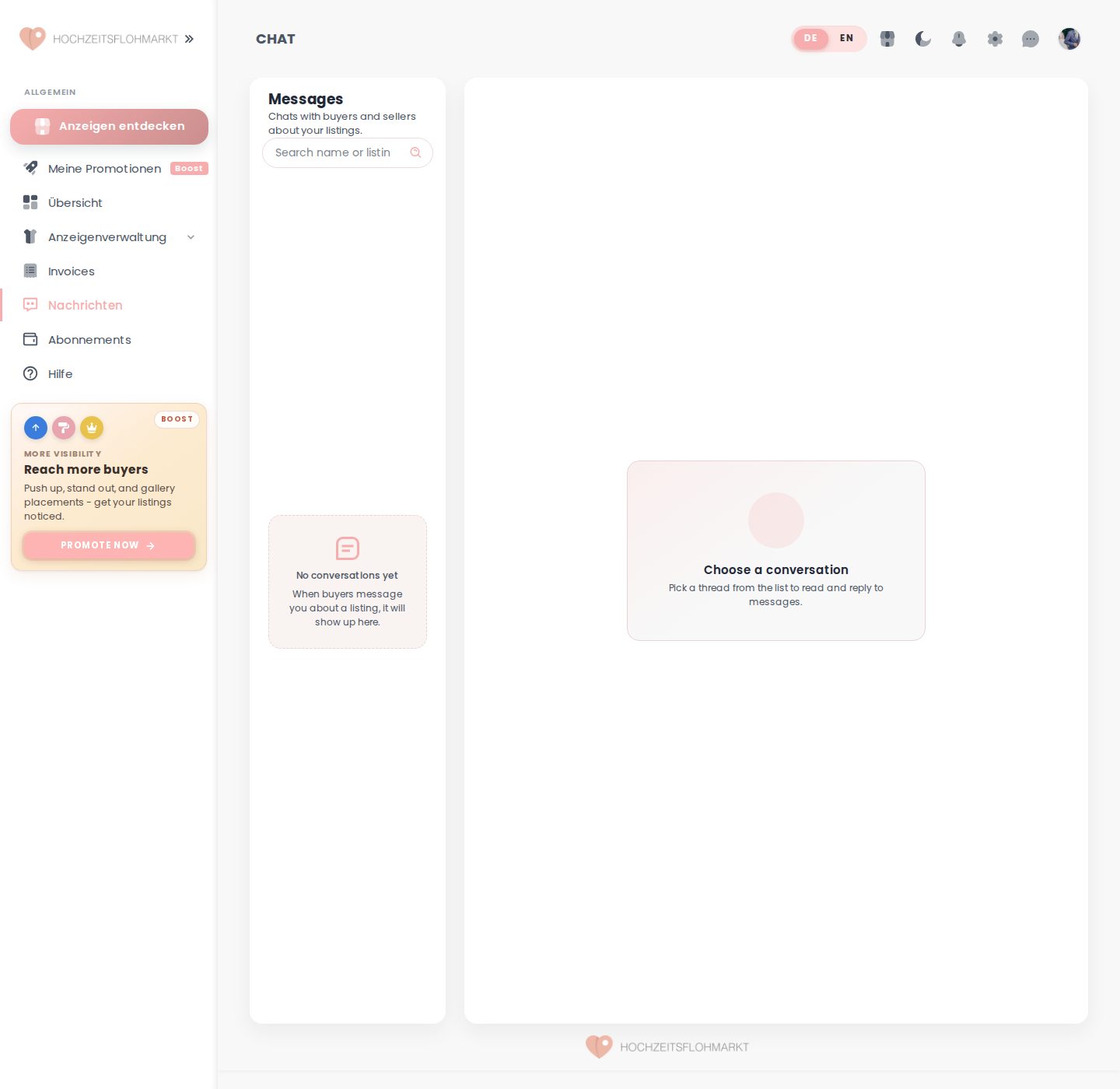
- Open
Nachrichten. - Search threads.
- Open conversation.
- Exchange listing-related messages.
7. User Management (Super Admin)
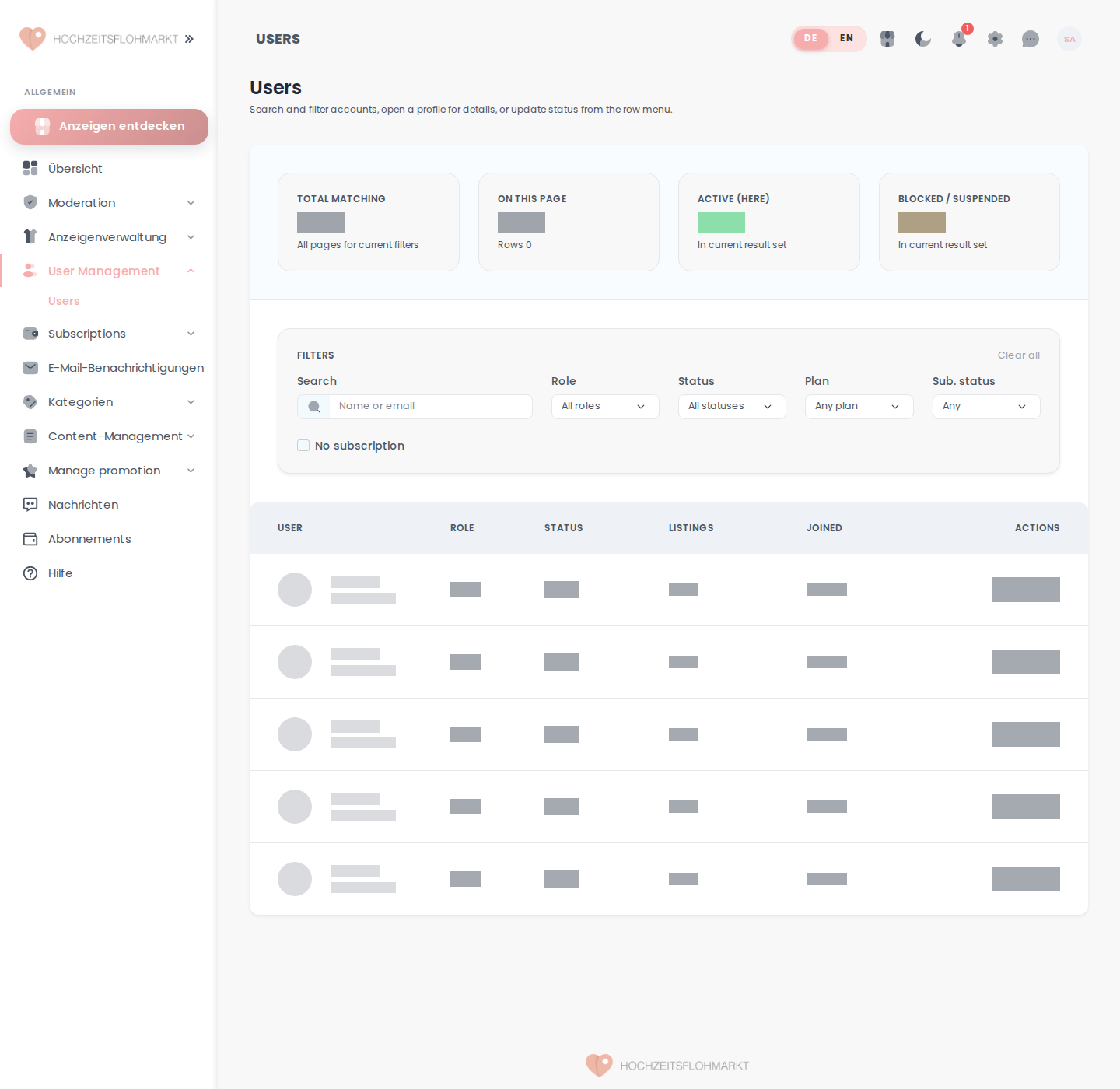
- Open
/admin/users. - Filter by role/status/plan/subscription state.
- Open profile or row action.
- Update account state if needed.
8. Analytics Usage
Seller roles
- review dashboard activity cards
- inspect top listings and lead/view placeholders
Super Admin
- inspect platform-wide user/listing totals
- review city/top-listing widgets
- monitor moderation and pending listing status
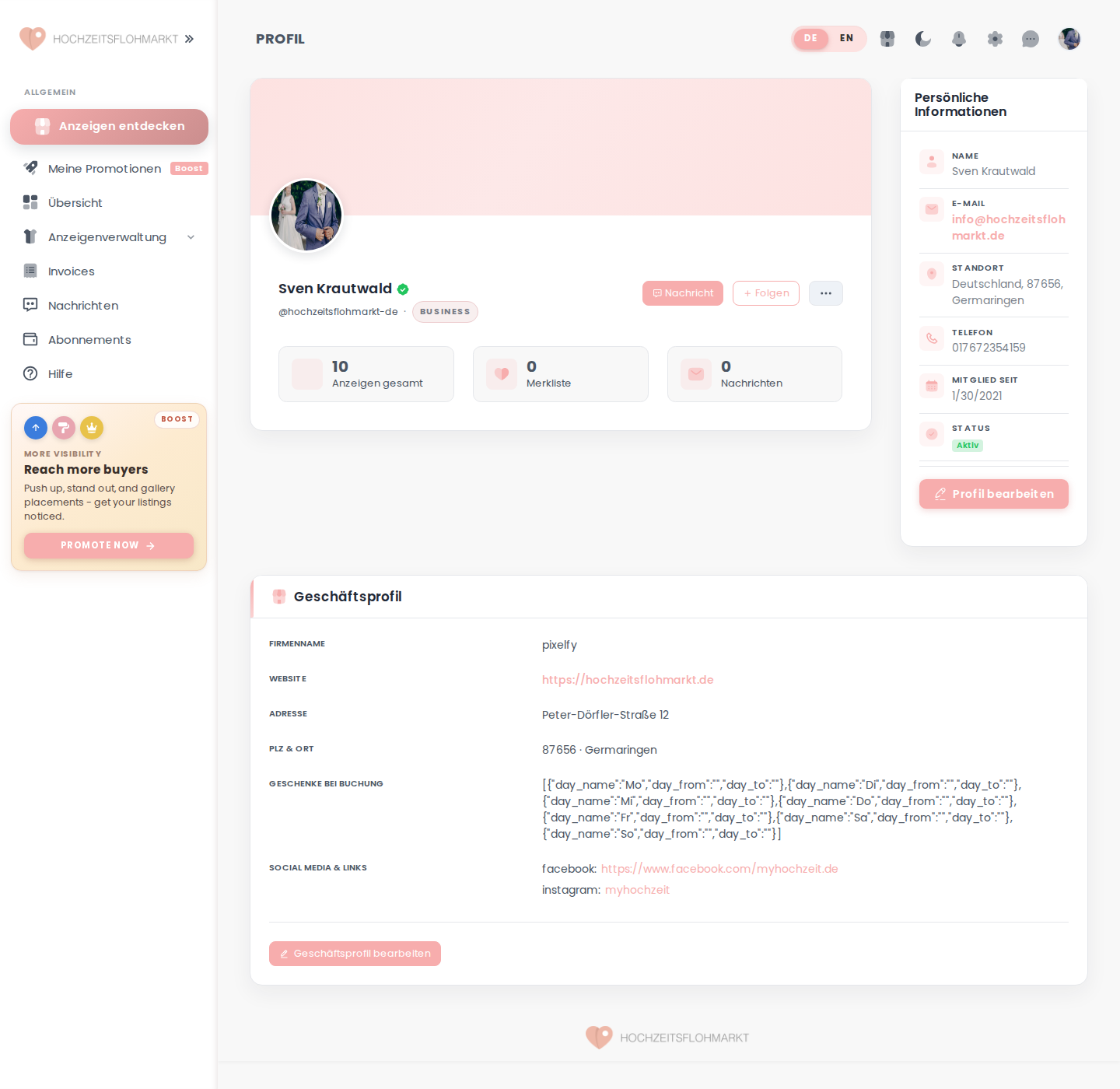
9. Profile Updates
- Open
/profile. - Review personal info.
- Use
Profil bearbeiten. - For business roles, maintain business profile details.
10. Subscription Upgrades
- Open
Abonnementsor pricing page. - Compare plans.
- Select plan.
- Complete payment/subscription flow.
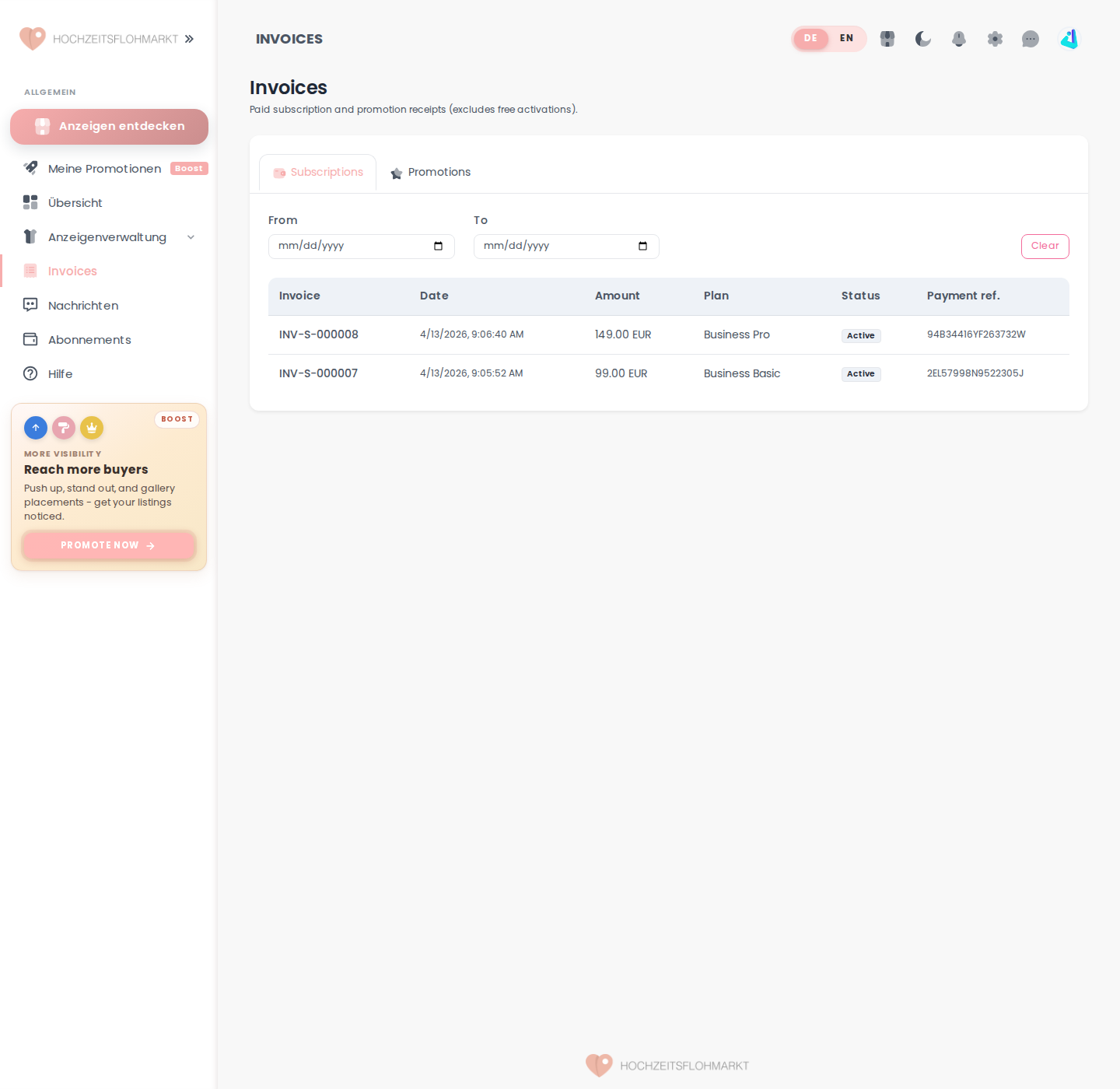
- Review invoice history.
11. Marketplace Browsing
- Use public landing site.
- Browse categories or search by radius.
- Open listing details.
- Login when seller/buyer actions require account state.
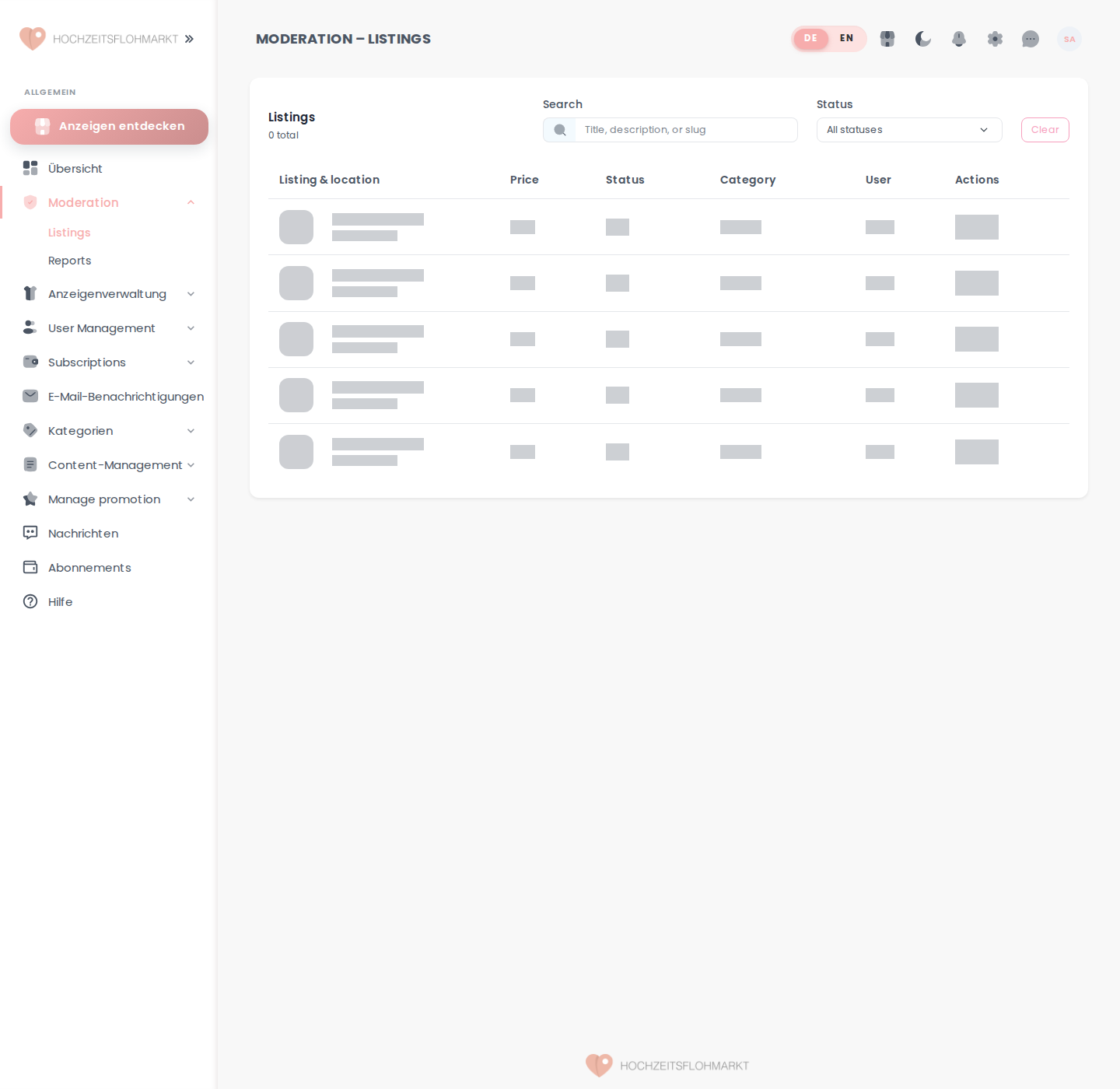
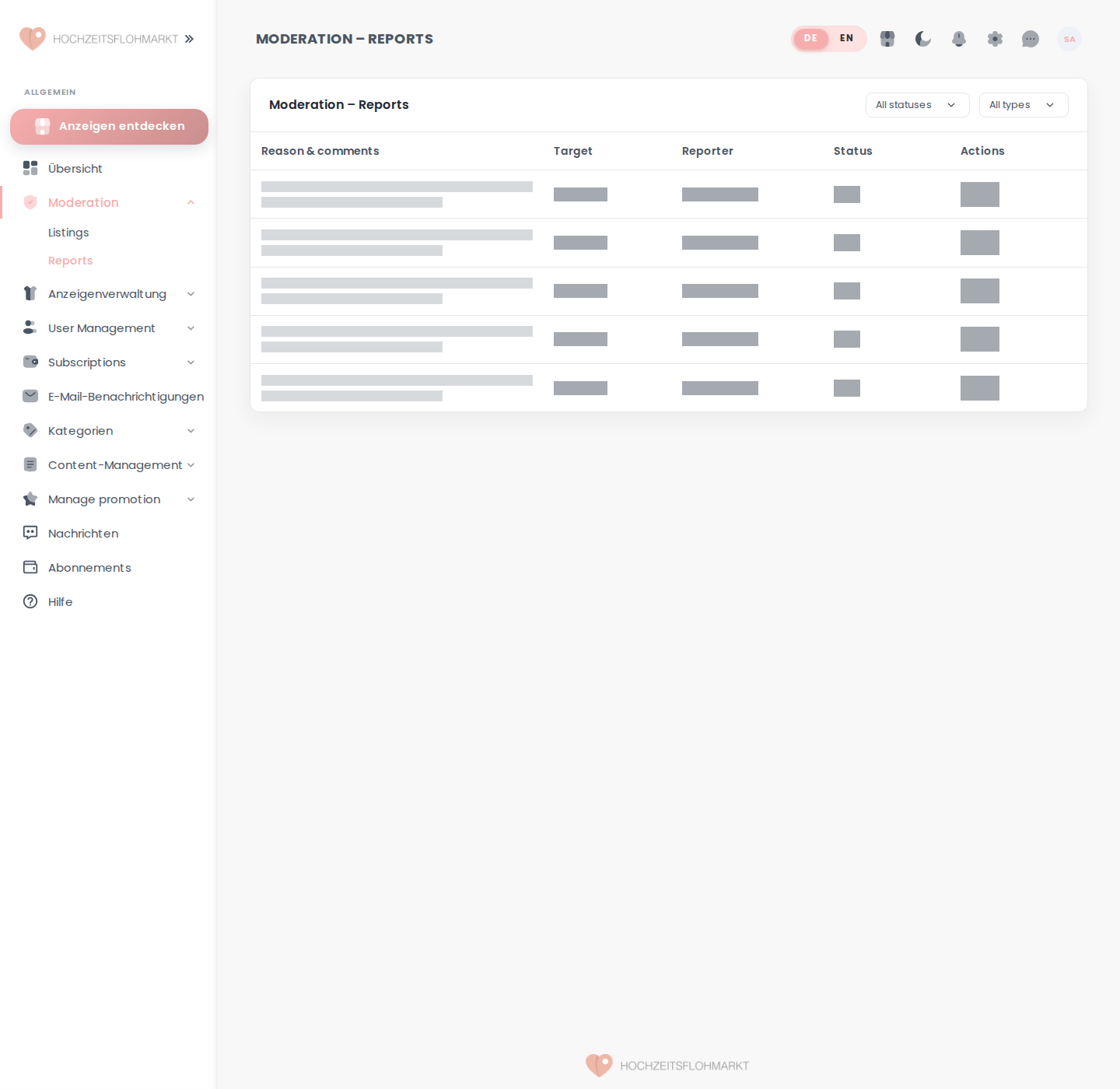
12. Admin Approvals / Moderation
- Open
/admin/listingsor/admin/reports. - Filter pending/open items.
- Review listing/report context.
- Approve/reject/resolve using row actions.
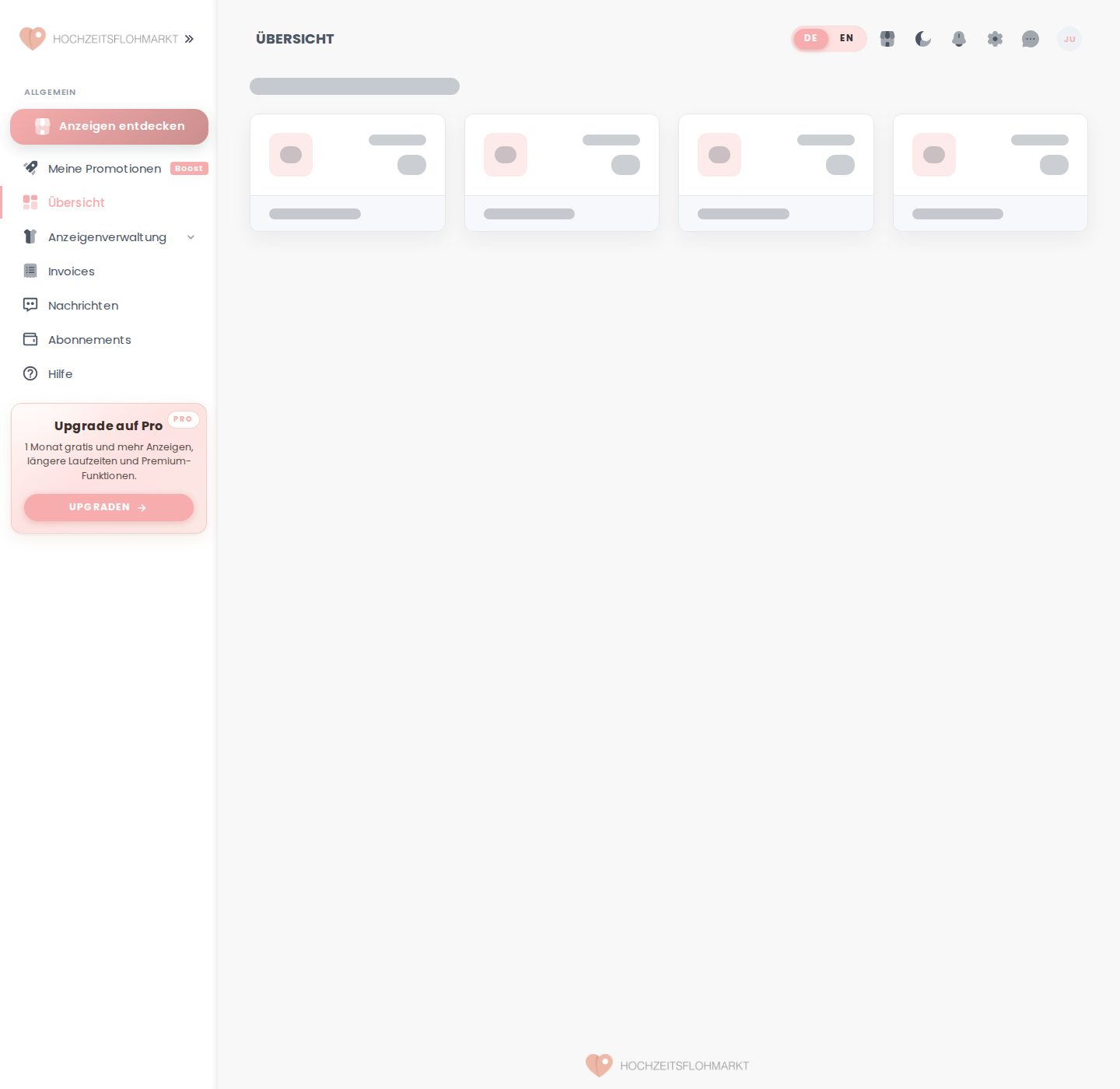
13. Dashboard Navigation
- Use sidebar by role.
- Open nested sections where available.
- Use top nav notifications and profile entry.
- Jump back to public marketplace through
Anzeigen entdecken.
Visual Workflow Examples
Login flow
- Open the login page.
- Close the announcement modal if it blocks interaction.
- Authenticate with the normal login form or quick-login path.
- Land on the role dashboard.
Listing creation flow
The create-listing form is shared across seller roles and includes core listing fields plus image upload.
Super Admin moderation flow
Super Admin can review listing and report queues from dedicated admin pages.